How to Make Coloring Pages in Canva, Step by Step — and Where It Falls Short
Canva can lay out a coloring page — and make a simple one from shapes or elements — but it can’t turn a photo into clean line art or fix thin lines. A step-by-step for what works, the export settings that print right, and when to do the drawing elsewhere and use Canva for the page.
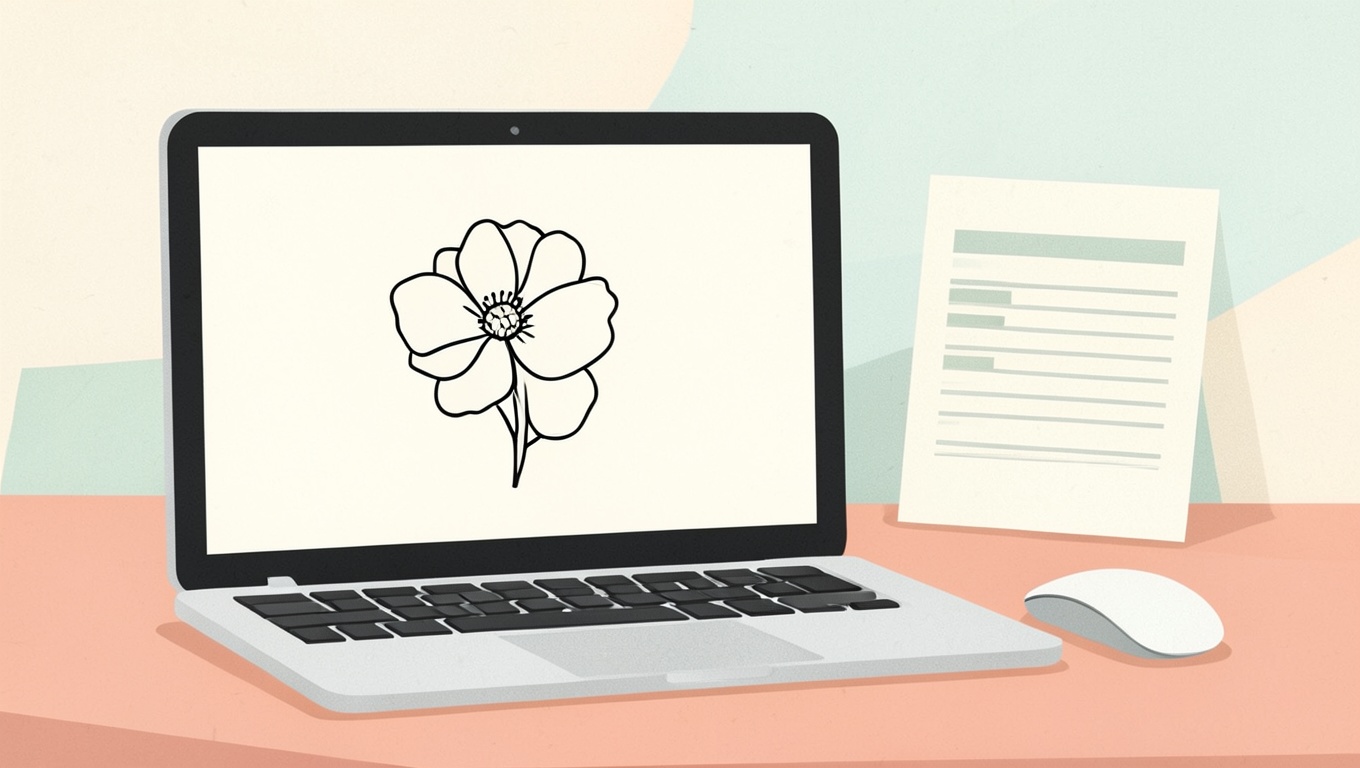
Short answer: Canva is good at two things for coloring pages: assembling a printable page (size, margins, title, borders, PDF export) and building simple pages from its line-art elements and shapes. It is weak at converting photos into clean outlines (no threshold tool; its sketch effects leave grey) and at drawing original line art (the Draw tool is basic). The sensible workflow is to make or generate the line art elsewhere, then use Canva for layout and export. Steps for each path follow, plus the export settings that actually print at the right size.
Set up the page correctly first
- Create a design → Custom size: 8.5 × 11 in (US Letter) or 210 × 297 mm (A4). Don’t use a “poster” or “document” preset that’s a different shape.
- If you’re designing for print-on-demand with bleed, make it 8.75 × 11.25 in and keep everything important 0.375 in inside the edge; for home printing, no bleed and a 0.5-in margin is plenty.
- Turn on rulers and guides (File → Settings) and drag guides at 0.5 in from each edge. Everything that matters stays inside them.
- Set the background to pure white (#FFFFFF). Canva’s default is already white, but if you applied a template it may not be.
Path 1: Build a simple page from Canva elements
Canva’s Elements library has thousands of outline-style graphics: search for “line art,” “outline,” “coloring,” “doodle,” “monoline” plus your subject (“line art dinosaur,” “outline flower”). Many are free; some are Pro. This is the easiest way to make a genuinely decent simple page — for toddlers and young kids especially.
- Drag one large element onto the page and size it to fill most of the safe area. One big subject is better than five small ones; our guide on what makes a toddler page work explains why.
- If the element has a color fill, select it and change every color to white (or remove fills) and the outline to black. Not every element allows this — pick ones that do, or that are already black outlines.
- Check line weight by zooming to 100%: lines should be clearly visible, not hairline. If an element’s outline is too thin and can’t be adjusted, pick another; Canva can’t thicken strokes on imported graphics.
- Add a simple border or title if you want (keep text well inside the margin and don’t put text over the art).
- Optional: add a few simple shapes — a sun, a cloud — from the Shapes panel, with no fill and a black 3–4 px stroke, to round out the scene.
For classroom use, the same technique builds color-by-code pages quickly: one big outline graphic plus numbers placed in each region and a key at the bottom.
Path 2: Lay out line art you made elsewhere
This is what Canva is really for. Make the drawing in a proper tool — trace or draw in Procreate, generate it with an AI coloring-page tool (our prompt structure is in how to write prompts for AI coloring pages), or convert a photo following turning a photo into a coloring page — export it as a PNG at least 2550 × 3300 px, and then:
- Upload the PNG to Canva and place it on your letter/A4 page.
- Size it to the safe area. Don’t enlarge a small PNG to fill the page; Canva will happily stretch a 1000-px image to letter size and it will print soft.
- Add a title, a small © line, a page number for a booklet — whatever the page needs — outside the art area.
- For a multi-page booklet, duplicate the page and swap the art; Canva exports all pages into a single PDF, which is what you want for printing or for print-on-demand.
Path 3: The photo-to-coloring-page attempt (and why it disappoints)
Canva has no true black-and-white threshold. Its photo effects — sketch, pencil, outline-style apps in the photo editor — desaturate and emphasize edges but leave grey tones, so you get a soft sketch rather than clean closed outlines. If you want to try anyway: upload the photo, Edit photo → Adjust (saturation −100, contrast up), then apply a sketch/line effect from the Apps/Effects panel and max its intensity. The result is usable for older kids who don’t mind grey and poor for toddlers. For clean lines, do the conversion elsewhere and bring the PNG back into Canva for layout.
Path 4: Drawing in Canva
The Draw tool (pen, marker, highlighter) works with a mouse or stylus and can produce a simple page — but strokes are jittery without a tablet, there are no pressure curves or smoothing worth the name, and you can’t easily close shapes or adjust a line after the fact. It’s fine for a quick shape or for adding a doodle; it isn’t a line-art tool. Procreate, Affinity Designer, Krita (free), or even a fat marker on paper and a scanner, all produce better outlines.
Exporting so it prints right
- For home printing: Share → Download → PDF Print. Leave “Crop marks and bleed” off unless you set up bleed. PDF Print embeds at full quality and keeps the page size, so it opens and prints at 100% anywhere. PNG is fine too — choose the largest size Canva offers.
- For print-on-demand (KDP and similar): PDF Print, with “Crop marks and bleed” on only if your design has bleed, and “Flatten PDF” on to avoid transparency problems. Page size must match the trim exactly; our KDP coloring book guide lists the numbers.
- Color profile: RGB is fine for home printers and for KDP’s black-and-white interiors; pure black (#000000) lines print as solid black.
- Open the exported PDF and zoom to 200–300%: edges should be crisp. If they aren’t, the source image was too small — see coloring page size and resolution.
What Canva can’t do (so you stop fighting it)
- No threshold / “force to black and white” — the main reason photo conversions look grey.
- No stroke-weight control on most imported graphics and uploaded PNGs.
- No vector tracing of bitmaps (“Image Trace”).
- Limited brush engine for drawing; no pressure-based line variation.
- Upscaling: it will stretch a small image without warning.
None of these are reasons not to use Canva. They are reasons to make the line art somewhere else and bring it in.
A quick recipe for a themed mini-booklet
- Generate or draw 8–10 pages at 2550 × 3300 px with a consistent style and line weight.
- In Canva, make a letter-size design with a cover page (title, a small piece of the art, your name) and then one page per drawing, each inside the 0.5-in guides.
- Add a small footer with the page number and a © line.
- Download as PDF Print. Print single-sided on 24 lb paper (see best paper for coloring pages), staple or bind.
Frequently asked questions
Can you make coloring pages in Canva?
Yes — simple ones from its outline elements, and any page at all if you bring in line art made elsewhere. What Canva does best is layout and a print-correct PDF.
Can Canva turn a photo into a coloring page?
Only into a grey sketch; it lacks a threshold tool. Convert the photo elsewhere (AI converter, Photoshop/GIMP, or tracing) and use Canva for the page.
What size should I make a coloring page in Canva?
Custom size: 8.5 × 11 in (Letter) or 210 × 297 mm (A4); add 0.125 in bleed on each side only for print-on-demand with bleed.
How do I print a Canva coloring page at the right size?
Download as PDF Print and print at 100% / “fit to printable area.” Don’t download as a small PNG or print from the browser tab.
Can I sell coloring pages made in Canva?
Original work you made, yes. Canva’s Pro and free elements carry licenses that restrict reselling designs that are essentially just their elements; read the current Canva content license before listing pages built mainly from library graphics, and see our guide on selling coloring pages for the rights side.
If you’d rather skip the drawing step entirely, our free coloring pages download at full resolution and drop straight into a Canva layout for booklets and classroom packs.